Monday, October 29, 2018

Seeing Quiz Results for Assigned Videos

Have you explored the "Video" menu in Stride? The idea is that you can assign videos to individual students or the entire class.

So how do you motivate students to watch the video? In addition, how can you assess whether the students understood what they watched?

When you assign the video, you will see a spot to decide how many coins to award when a student watches the video to completion. You'll also see an option to assign a quiz. The students get coins for correct answers on the quizzes just as they would with any other questions.

How can you see the results of the quizzes? That part is not as obvious. So, here's the "how to do it":
  • Select "StrideXchange" on the left-hand menu.
  • Choose "View your collection of educational resources."
  • On the left-hand menu, choose "Assigned."
  • You will see a list of the assignments. For those who have completed assignments, there will be a button to click for the results.
Video Results.JPG

If you want to look up an individual student rather than view by assignment, here is how to do that:
  • Select "StrideXchange" on the left-hand menu
  • Click "View student progress"
  • In the search window, enter the name of the student.
Search for student by name.JPG

Wednesday, October 3, 2018

Top Classes for September

The start of October is a good time to look back at the last month and look ahead to PMA.

You may be wondering how your class usage on Stride compares to others. Here are the top-scoring classes for the 16 schools with whom I work in terms of questions answered for the month of September:


1. Christopher Harris 2nd grade Barrett Elementary 9,621
2. Kira Lawson-Pierce 5th Grade Central Park Elementary 8,772
3. Andrea Bobbs 3rd Grade Central Park Elementary 8,132
4. Kimetra King 1st Grade Barrett Elementary 6,171
5. Alike Johnson 4th Grade Wylam Elementary 6,107

Top scores for schools that organize by grade level:
1. Weaver High School 7th grade 9,861
2. Pleasant Valley High School 8th Grade 7,181
3. Pleasant Valley High School 7th Grade 5,453


Did you already get an email from Stride with a link to the information for your class?

If you did not, here is how to add your email address:
  1. Log into Stride
  2. Click "Reports"
  3. Click "Class Report Automation"
  4. Add the email addresses of anyone who should receive the Class Summary Report.
  5. In the "Summary reports" area, put a check in the boxes for "Weekly" and "Monthly."
  6. Click "Save."
Every Saturday, you will receive the Class Summary Report showing performance for your class over the past week.

At the end of every month, you will receive the Class Summary Report showing performance for your class over the past month.


PMA
When you log into Stride, click on the "Class Roster" tab. You will see a column telling you the status for each student om PMA. A capital letter means the student has begun that portion of PMA (reading of math). A capital letter indicates the student has completed that subject.

When you look at the list and see "MR" beside each student, your class is finished with PMA.

The sooner the class finishes, the sooner the you can run the "Class PMA Report." Here, you can tell each student his/her score as well as look what standards were strong and weak.

Monday, September 24, 2018

PMA Starts October 1

If you teach students in the K-8 range, the Progress Monitoring Assessment begins October 1. When students log in, they automatically begin PMA questions just by clicking on the big coin. Each subject area (Reading and Math) requires around 30-45 minutes.

Don't worry if a student does not finish in one sitting. When the student logs in next time, PMA questions resume. Another good feature is that when students go home, PMA pauses. Students may use Stride, but they receive the regular Stride Adaptive Engine questions. That way, students are under your supervision during PMA.


Here are tips for a successful PMA:

  1. Encourage students to do their best. You need to be able to trust your data. The way to do that is be sure students are focused. During the Math portion, be sure students have scratch paper. You want them to work out the problems on paper first and then compare their answers with the possible answer choices. During the Reading portion, if the students can scroll back to a passage and re-read it after they read a question, have them do that.
  2. As a followup to scratch paper, have the students turn in the scratch paper. The computer is going to do the grading. Take part of the time you saved and use it to review the scratch paper of students who had problems. You'll learn a lot about why a student is missing problems.
  3. Finish PMA in a relatively short time frame. The sooner students finish the sooner you will be able to give them feedback on how they did and the sooner you will be able to use the results to drive instruction.
  4. During PMA, use the Performance Ticker. You see it at the top of the Dashboard to monitor how students are doing. Clicking on the "Realtime Stats" button is the key.
  5. Use the Class Roster to see who has finished and who has not. When you see a capital "M" and a capital "R" for all students, you're done.
  6. Run the Class PMA Report to view your results. Let students know their percentages. View which standards were the strongest and weakest for your students. The results will let you know what to reteach. You will also learn how your students perform on standards you haven't even covered.
If you are experienced with Stride, what other suggestions do you have for making PMA successful? You have the ability to click below and leave a comment.

Thursday, September 20, 2018

Video on Quiz Builder

Quiz Builder is one of the most valuable components of Stride. You can learn how to build quizzes starting on page 10 of the Stride User Guide.

I found this video on YouTube. Because it was created a couple of years ago, the login screen will look different to new users. 


Another enhancement since this video was created is the "Performance Ticker" you see at the top of the Dashboard. Clicking on "Real Time States" shows you how your students are doing as they are answering questions. You don't even have to wait for them to finish quiz!

The video covers the basic concept of the Quiz Builder in only 5 minutes.

Wednesday, September 19, 2018

For Teachers With More Than One Class

Some of you have more than one ALC. To save time in changing from one class to another, you may follow these instructions. 

Have the teachers login to one of their classes and click “Secondary Access” at the very bottom of their menu.

Click the “One-click Logins” tab at the top.
On the right, click the “Automatically generate One-click Logins for your primary Classes”.
That will unify all the classes.
 
From now on, they will login to ONE of their classes.

They can then click the “Switch Classes” button in the top right and it will pull the list of all their classes.  It will look like the old list and they can login to the other classes.
 
They will no longer have to go through the unified login process where they had to do so many clicks and enter their info and the class passwords.  It is now just a couple of clicks and done.

Monday, September 17, 2018

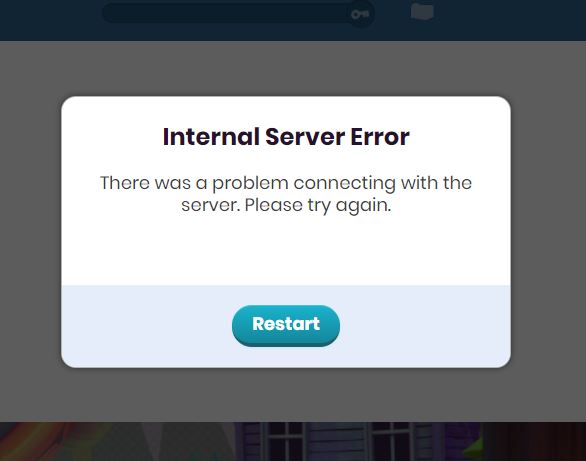
Internal Server Error

I am getting this after I log in as a student. It took a LONG time to go from the picture of the Alabama state capitol to the coins. When I clicked a coin to go in, there was a long delay followed by this message.


Saturday, September 15, 2018

User Guide

A Stride User Guide is available. You may download it from here and save it to your computer. Or, you may save the link and access it from the Internet when you need to refer to it.

I have also added the link in the sidebar to the right.

In particular, take a look at pages 10-13. Quiz Builder is a fantastic part of the program. It's easy to create the quizzes. Those pages guide you through how that part of the program works.